
How to Install DS4 AIM Premium
Watch the full setup tutorial, then open each installation step only when you need it.
Watch the full setup
Start with the video, then use the expandable installation steps underneath.
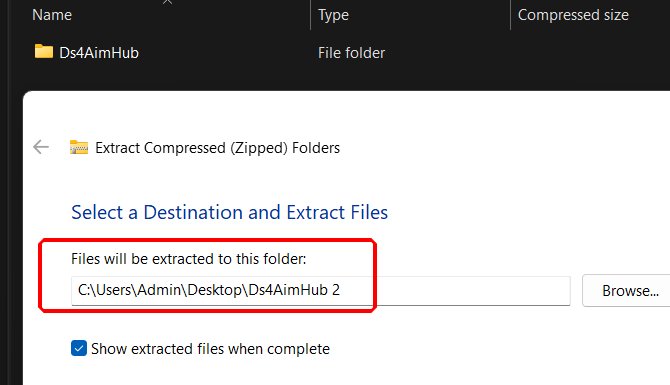
01Extract the AimHub folderMove the downloaded files out of the ZIP archive
- Locate the downloaded DS4 AIM Premium ZIP file.
- Right-click it and choose Extract All.
- Extract the AimHub folder to your desktop or another easy-to-find location.
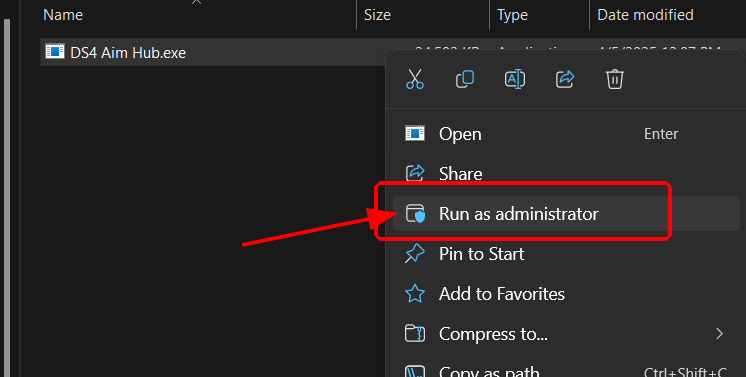
02Run AimHub as AdministratorGive the launcher permission to install the required files
Open the extracted AimHub folder, right-click AimHub.exe, and select Run as administrator.
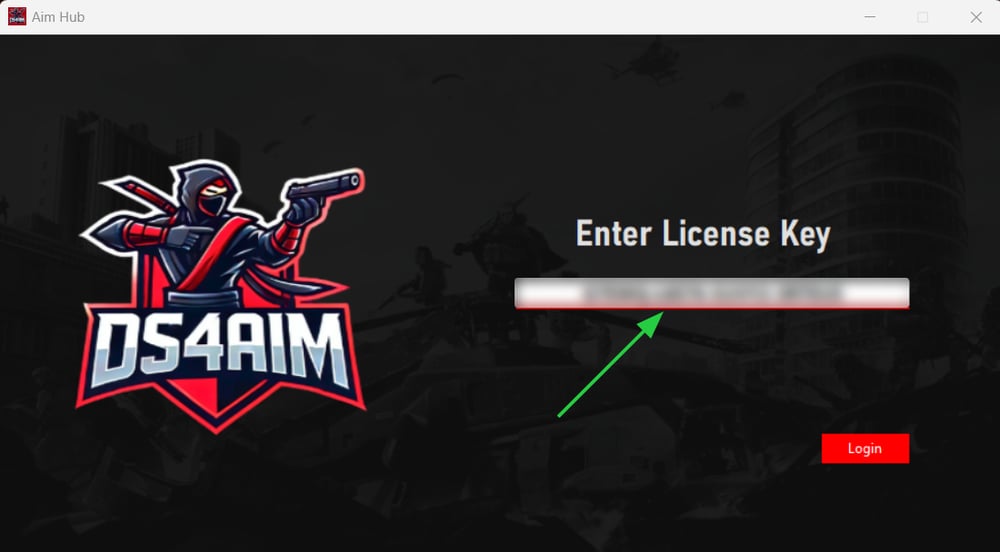
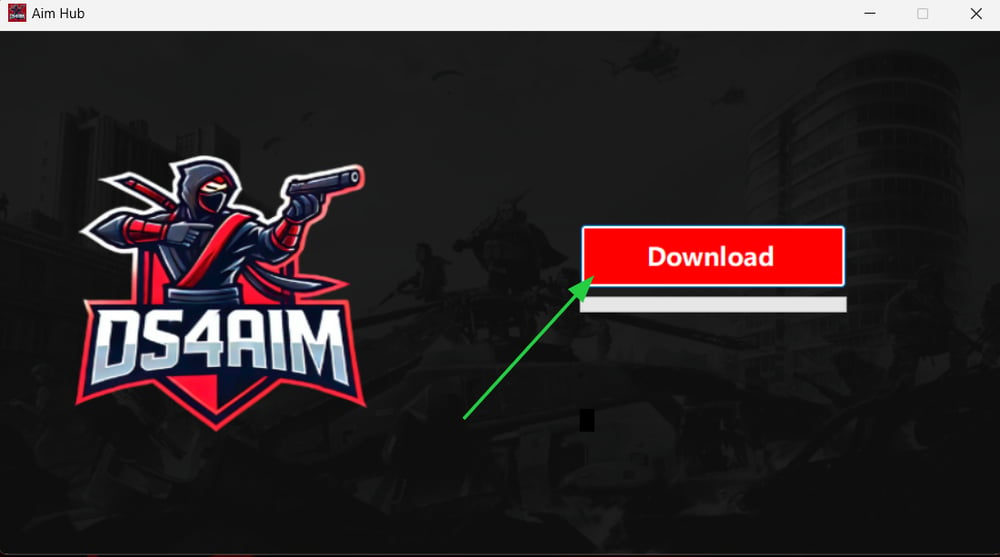
03Enter your licence and download DS4WindowsUse the Payhip key supplied after purchase
- Copy the licence key from your Payhip email.
- Paste it into DS4 Aim Hub.
- Select Download.
- Wait for the download and extraction to finish.
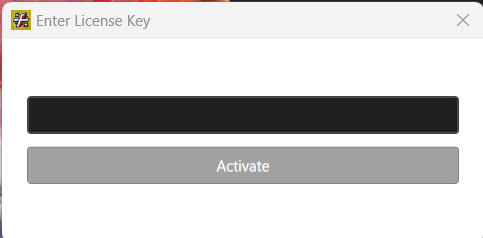
04Activate DS4 AIM PremiumEnter the same licence key when the app opens
When DS4 AIM Premium launches, paste the same licence key into the activation window and verify it.
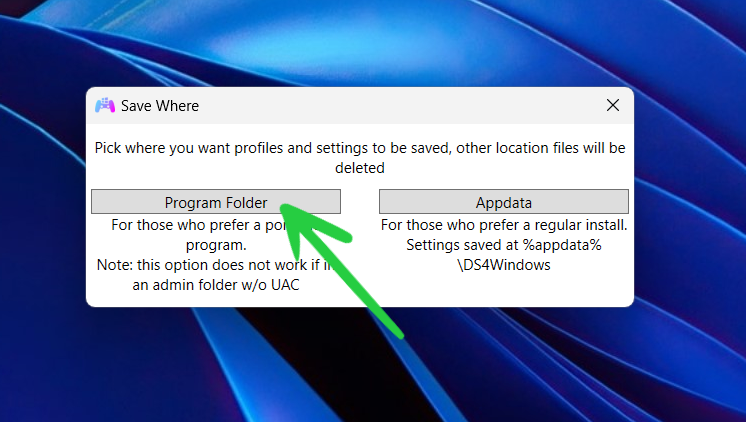
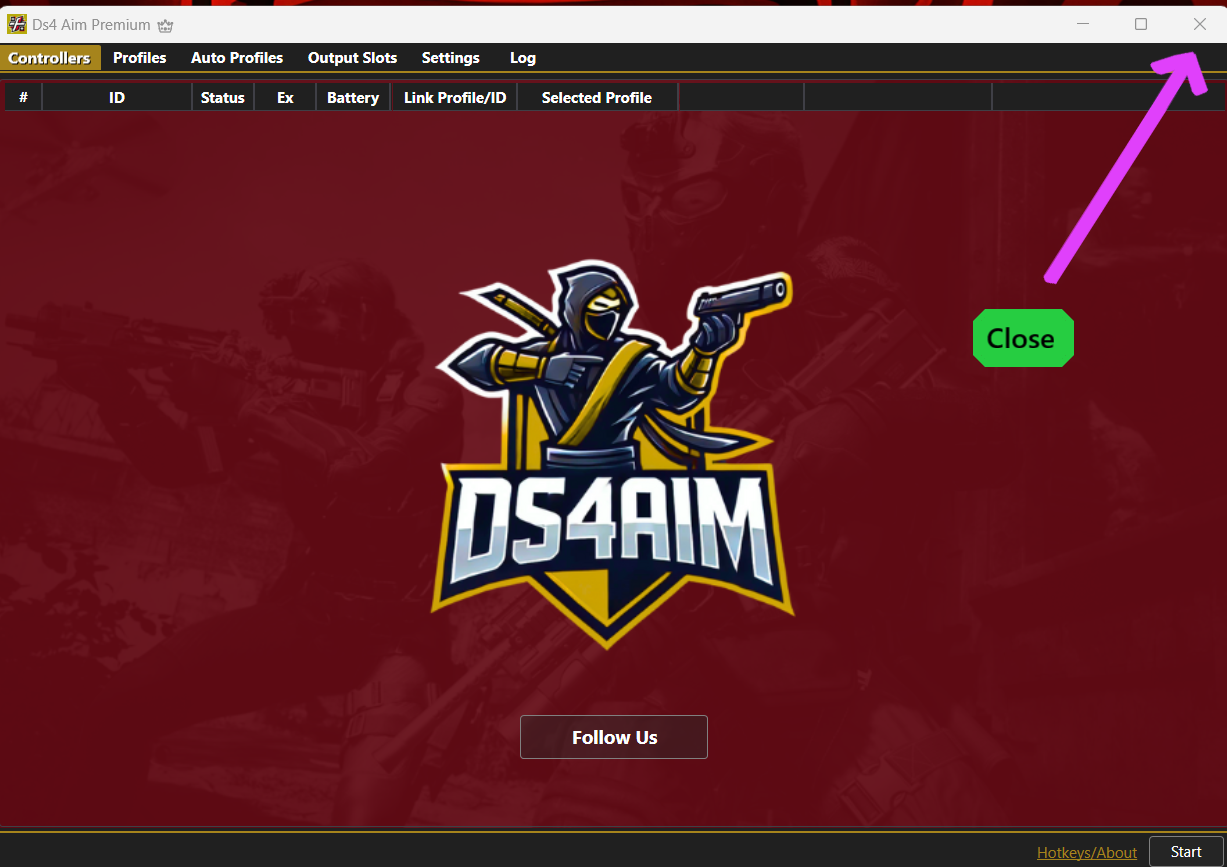
05Choose Program Folder if promptedSkip this step if the window does not appear
- Select Program Folder.
- Do not choose App Data.
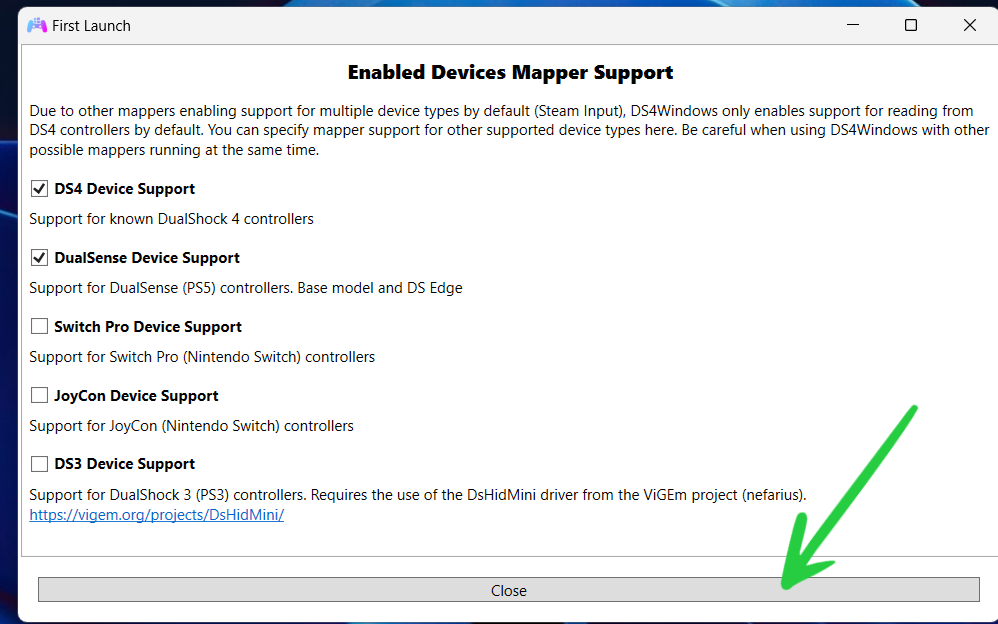
- Select Close when the setup finishes.
06Pin DS4 AIM to your taskbarCreate an easy shortcut for future launches
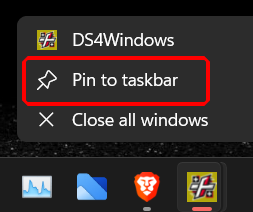
- Right-click the DS4 AIM icon in the Windows taskbar.
- Select Pin to taskbar.
- Close DS4 AIM and reopen it from the pinned shortcut.
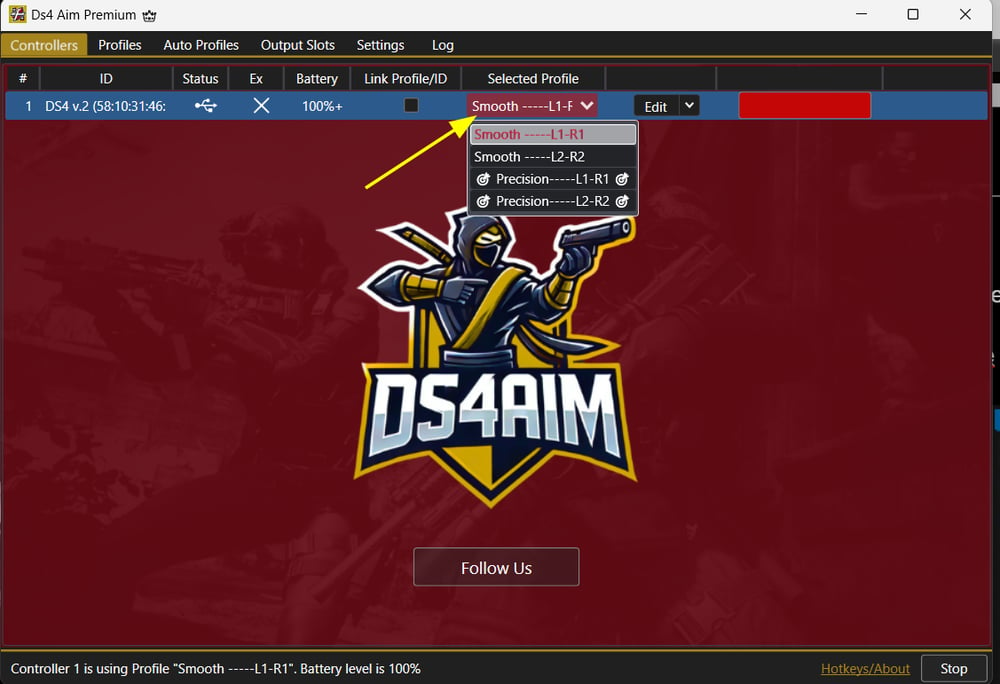
07Choose a profile and enable macrosMatch your L1/R1 or L2/R2 aim and fire setup
- Select the profile matching how you aim and fire.
- Open Edit.
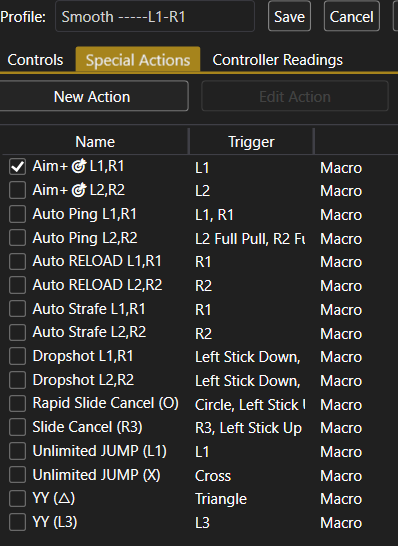
- Select Special Actions.
- Enable the supported macros you want active.
- Save or apply the profile.

08Rapid Fire and profile tipsRecommended setup checks before launching your game
Toggle Rapid Fire
- Hold your configured aim button.
- Press D-Pad Down once.
- Repeat the combination to turn it off.
If you shoot with R1
- Keep the extension configured for R2/L2.
- Choose the R1/L1 profile inside DS4Windows.
- Disable flipped bumpers in-game.
- Do not use Auto-Strafe in two places at once.
- Turn off Rotational Aim Assist if it conflicts with Auto-Strafe.
- Change one setting at a time and test in a practice environment.
Common installation questions
Quick answers for first-time installation and setup problems.
DS4 AIM officially supports the PlayStation 4 DualShock 4 and PlayStation 5 DualSense controllers.
A supported Bluetooth connection may work, but a reliable USB data cable is recommended for first-time setup and troubleshooting.
The licence key is supplied through the Payhip confirmation page and purchase email.
Administrator access helps the launcher download, extract and install the required files correctly.
Copy it directly from the purchase email, remove accidental spaces and confirm the computer is online.
Confirm the ZIP was extracted, then right-click AimHub.exe and run it as Administrator.
Choose Program Folder when prompted. Do not choose App Data.
Try another USB data cable or port, restart DS4 AIM and close other controller-remapping applications.
Choose the profile matching your in-game aim and fire buttons, such as L2/R2 or L1/R1.
Hold your configured aim button and press D-Pad Down again.
Use your authorised licence and contact support if activation limits or verification issues occur.
Join the DS4 AIM Discord
Need personal help with installation, activation, updating or controller setup? Join the official DS4 AIM Discord for support, announcements and community advice.